
How to use
From installation to SNS posting. Just follow the screenshots.
1. Install and run
Download the installer (WinGent-Setup-x.y.z.exe) from Home and run it. When it finishes, start WinGent from the Start menu or the desktop and the Home screen opens.
- The .NET runtime is included, so there is nothing else to install. To remove it, uninstall WinGent from "Installed apps" in Windows Settings.
- Sign up in the app to receive 1,000 Silver Coins. Recording and editing work without an account.
- Change the display language (한국어 / English) at the top right of the window, and the display mode (light / dark) in User Settings.
- On first run a "Collection and use of personal information" notice appears. Check what is sent to the server and why; after you agree you can use sign-up, Silver Coins and update checks. Screen recording and media editing work even if you do not agree.
2. Create a project
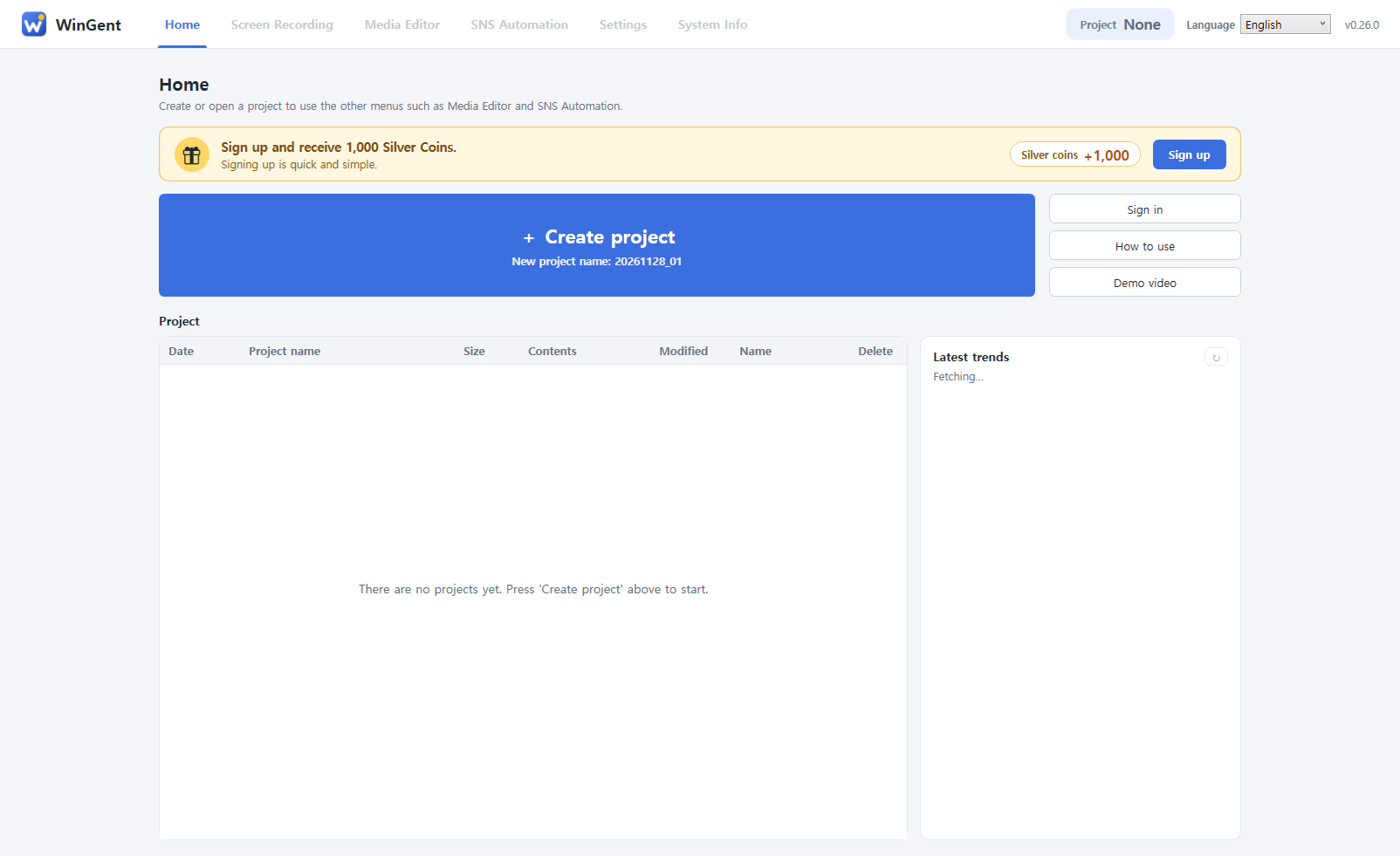
Click the large "Create project" button on Home. A project named after today is created and you move to Media Editing. Recordings, edits and posts are saved per project.
- Click an older project in the list to open it again.
- The other menus are enabled once a project is open.
3. Screen recording
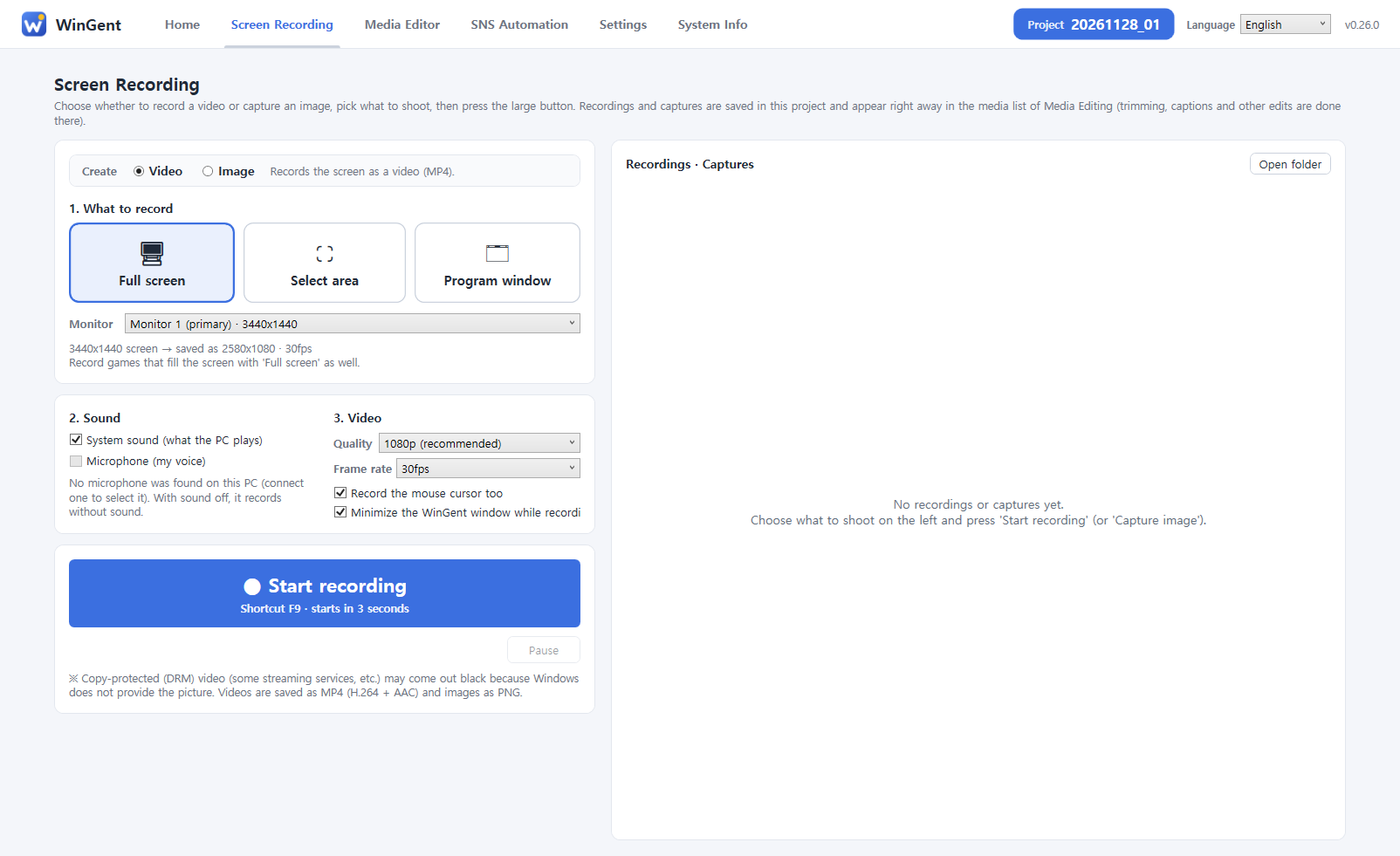
Choose what to record (full screen · region · app window) and the sound (system sound · microphone), then click "Start recording" or press F9. It starts after a 3-2-1 countdown and stops when you press F9 again.
- Recordings appear in the list on the right. Use "Send to editor" to put one on the timeline.
- You can choose the quality (1080p / 720p / original) and the frame rate (30 / 60fps).
4. Media editing
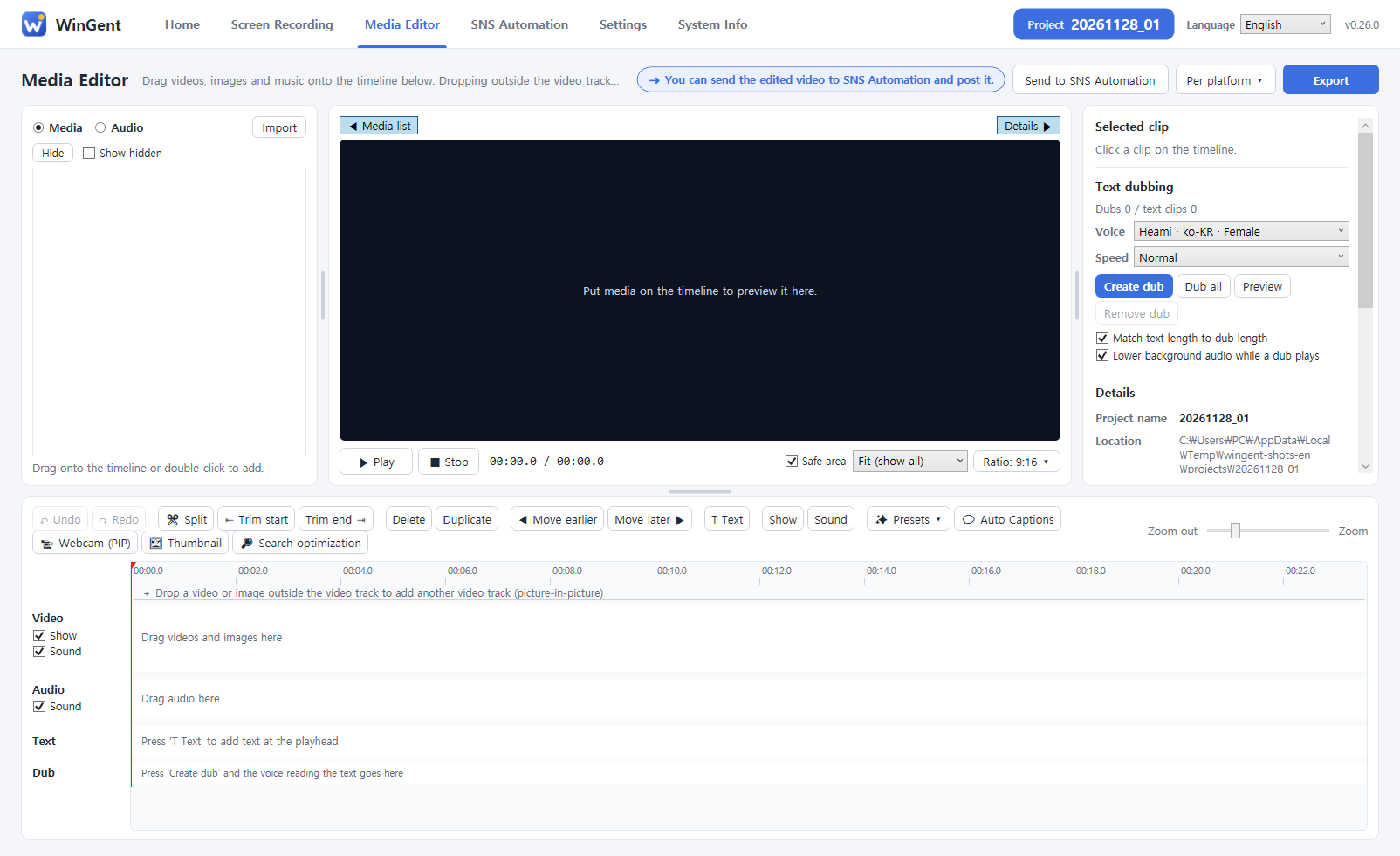
Put videos and photos on the timeline, split them ("✂ Split") and reorder them. Set text, music, dubbing, filters, color correction, speed and the aspect ratio (landscape · portrait Shorts), then make the video with "Export".
- "Go to SNS automation" exports and takes you straight to the posting screen.
- Color correction, speed and keyframes also apply to portrait videos shot on a phone.
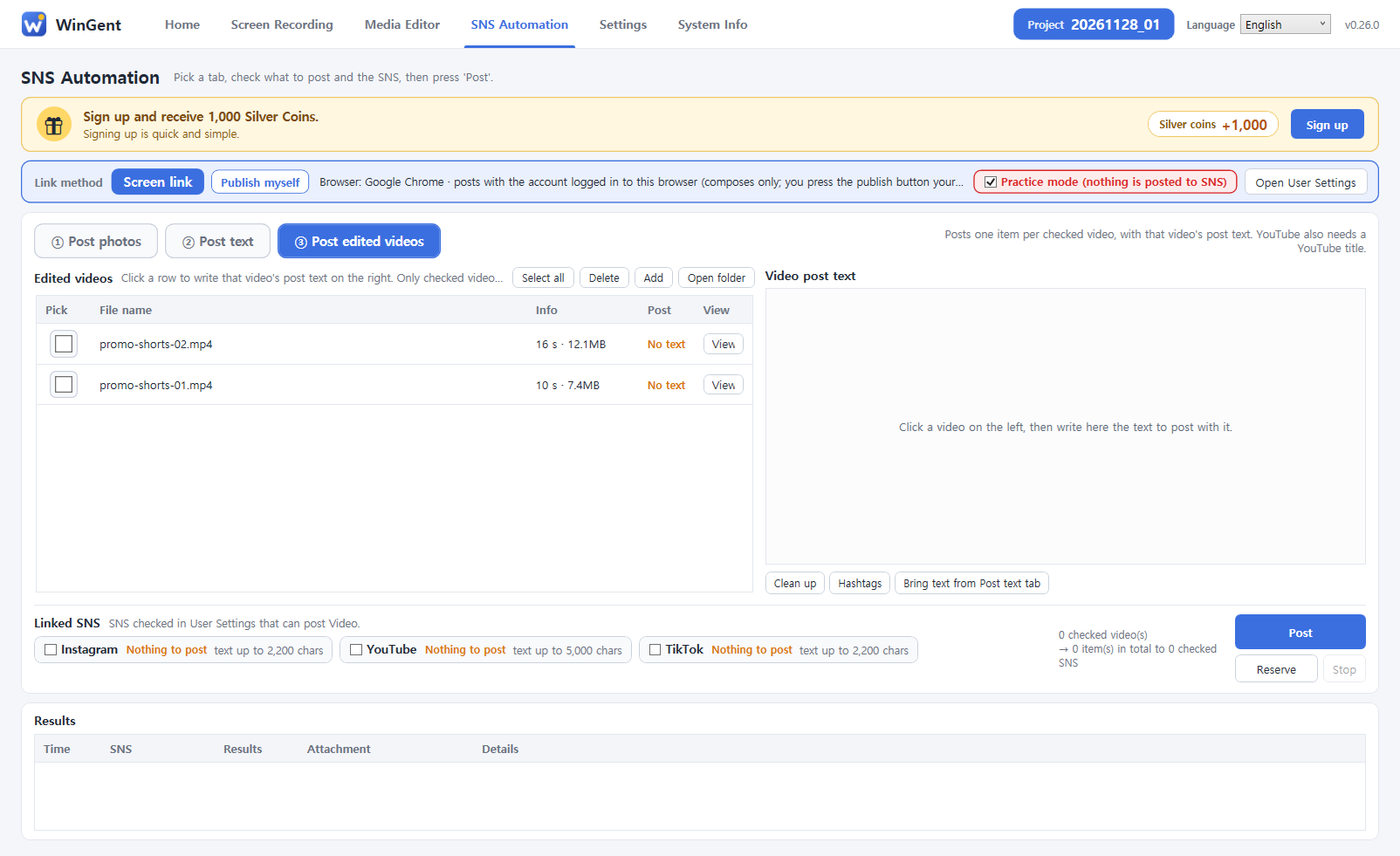
5. SNS automation
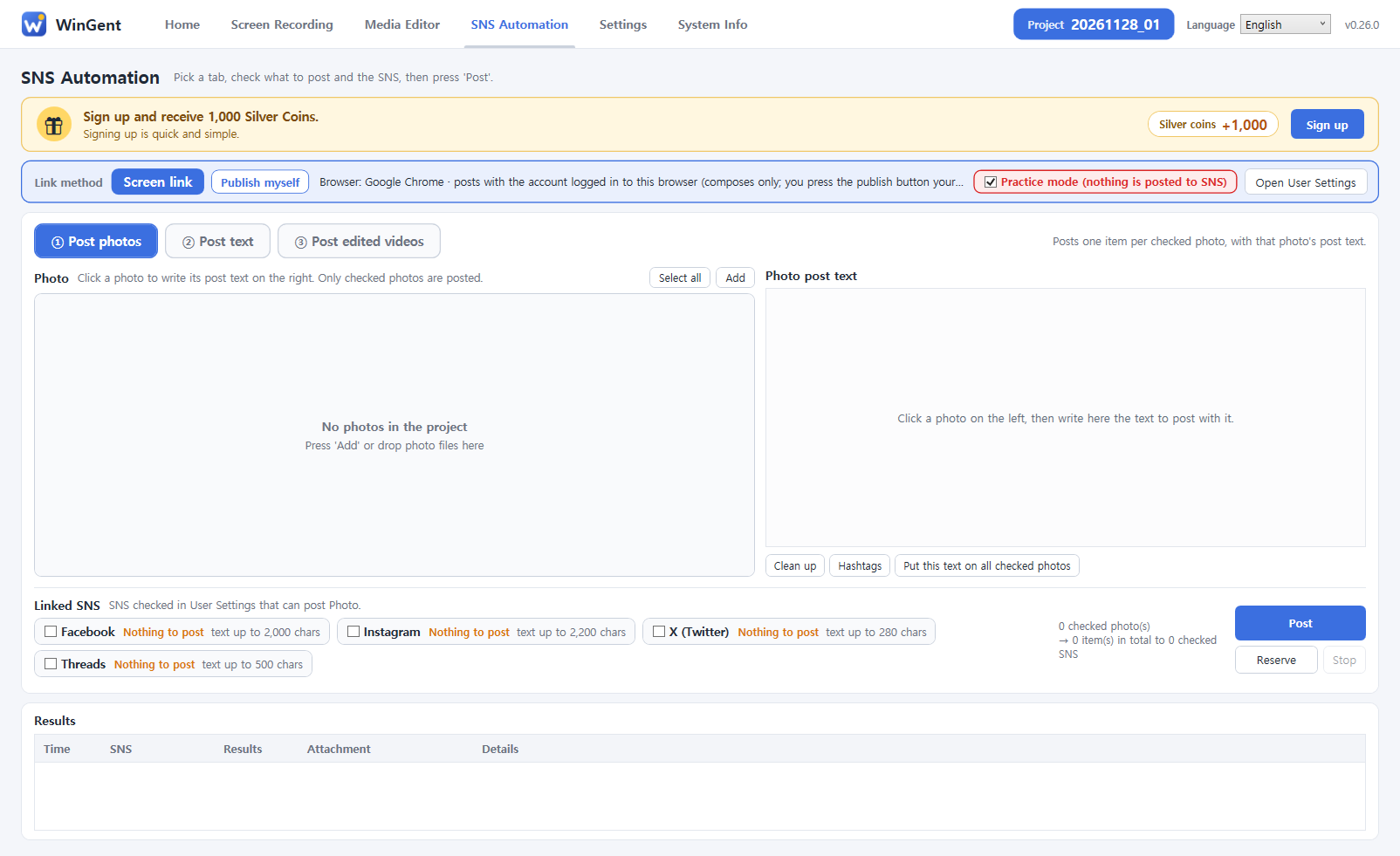
In the three tabs (① Photos · ② Posts · ③ Edited videos) check what to upload, write the post, then choose the SNS. Press "Publish" and a window shows what will be posted; confirm and it proceeds in your browser one by one.
- Try "Practice mode" first. It goes right up to the post button without posting and uses no Silver Coins.
- Each successful real post uses 10 Silver Coins. If you do not have enough, posting does not start and you are asked to buy more.
- Multiple posts are spread out (usually 5–10 minutes apart), and you can set a time with "Schedule".
- The default is "manual publish": the text and media are placed and it stops, so you check the content and click the publish button yourself. "Auto-publish", which also clicks the button, can be turned on in User Settings after you read the risk notice and agree.
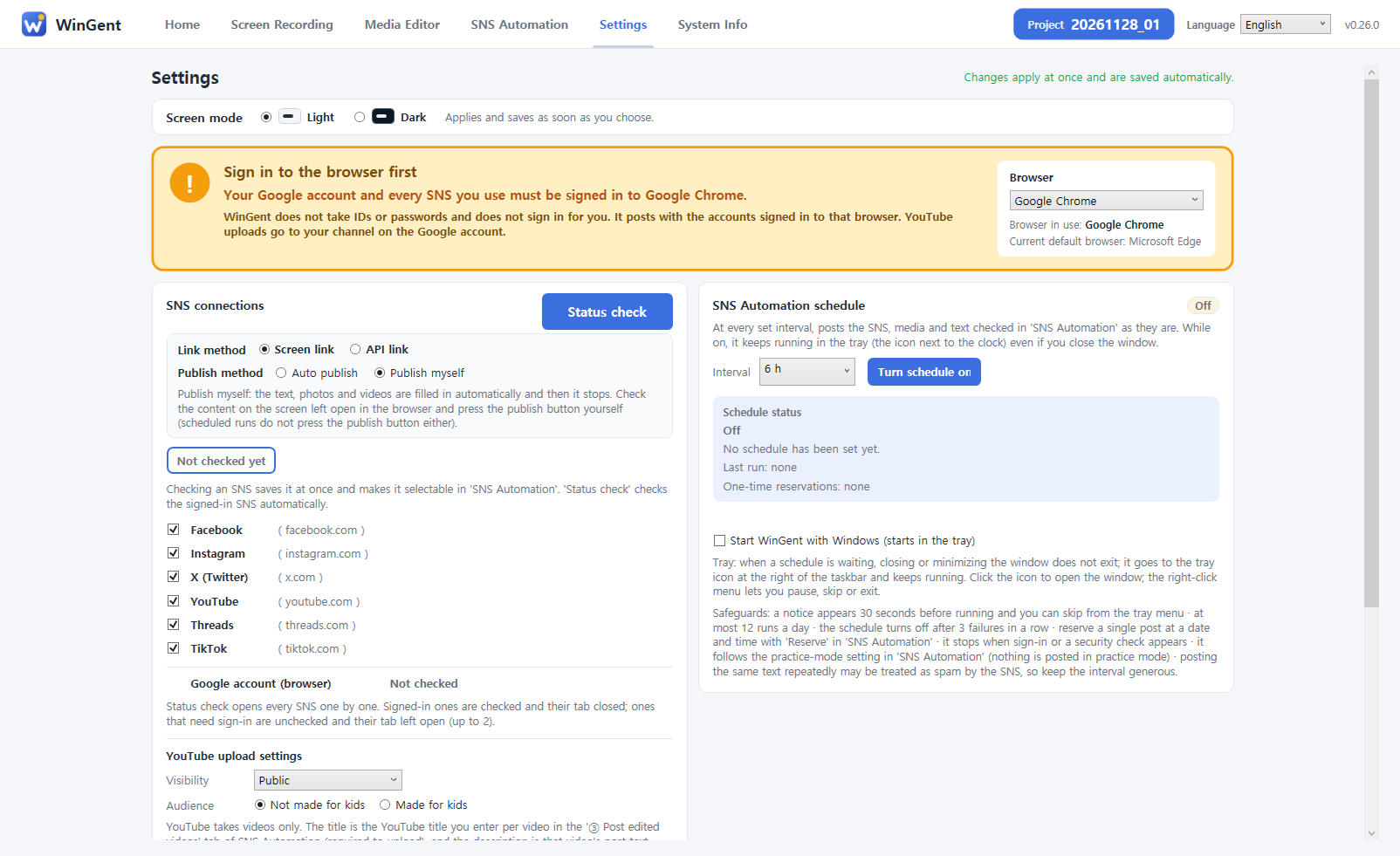
6. User settings
Choose which SNS and browser (Chrome / Edge) to use and run "Status check" to see whether you are signed in. The link method (screen / API), publish method (manual / auto), display mode, recurring schedules, YouTube visibility and starting with Windows are also set here.
- WinGent never asks for SNS IDs or passwords. Just sign in to them in your browser beforehand.
- Under "Personal information" at the bottom you can read the Privacy Policy and Terms of Use and agree to the collection and use of personal information.
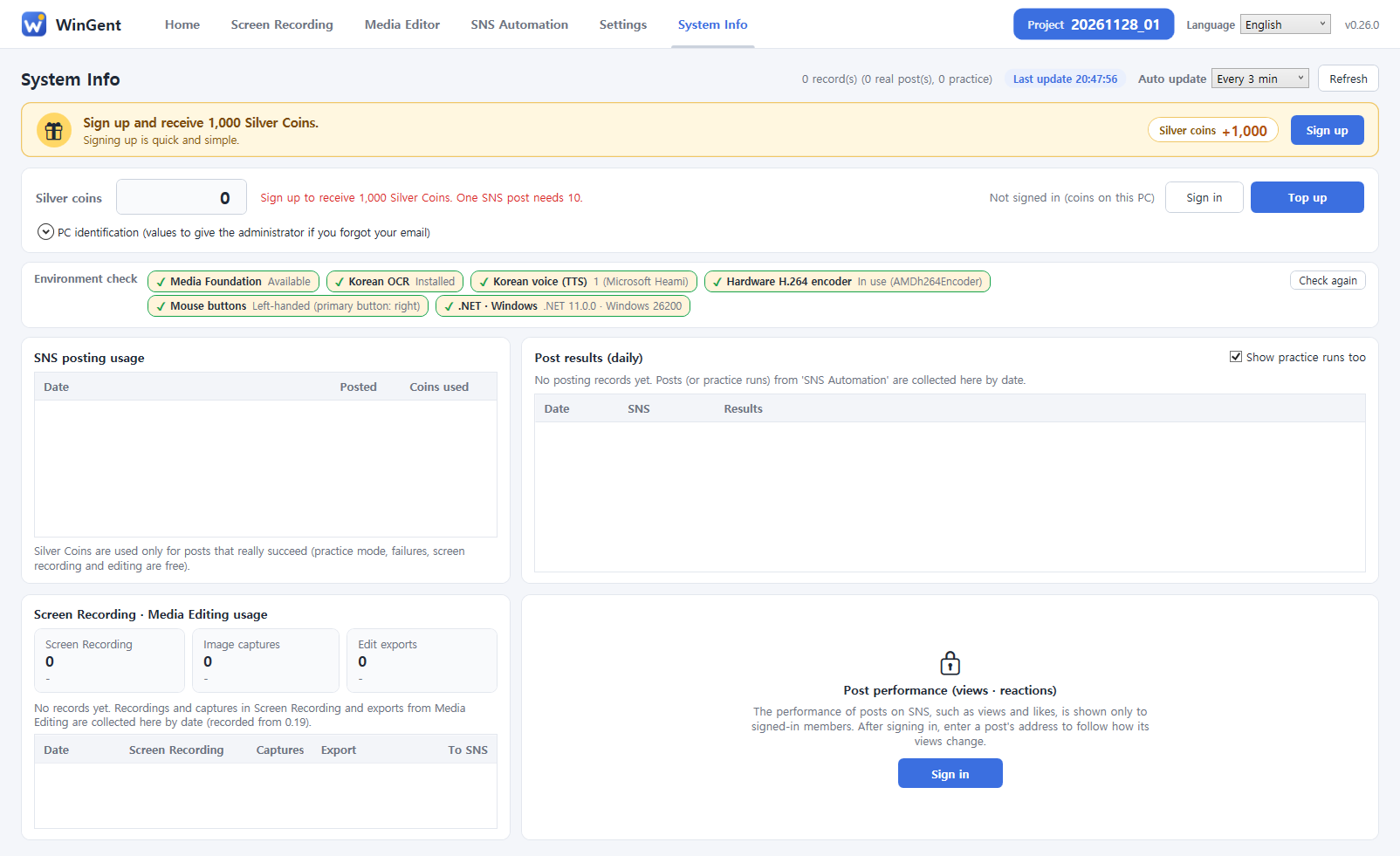
7. System info and Silver Coins
See your remaining Silver Coins, daily usage and posting results per SNS. Click "Buy coins" to open the sign-in window; after signing in, choose a product and pay in your browser.
- No account yet? Use "Sign up" in the sign-in window (email required).
- When you sign in, the coins left on this PC are moved to your account so you can use them on other PCs too.
8. Updates
WinGent tells you when a new version is available. Click "Update now" and it downloads the update, verifies its digital signature and restarts with the new version.
- New versions are rolled out gradually over a few days to avoid everyone updating at once.
- To get it right away, download the latest installer from this website and install it again. Your projects and settings stay as they are.
Stuck somewhere?
Ask in Q&A in the Community or check the FAQ.
Go to Q&A FAQ